Alternative Input Devices in UX/UI Design
Quick Summary
Digital interfaces have evolved beyond traditional keyboards and mice, incorporating alternative input devices such as voice controls, eye trackers, and sip-and-puff systems. These innovations are particularly beneficial for individuals with physical or cognitive challenges, making technology more accessible and inclusive. By aligning with standards like the Web Content Accessibility Guidelines (WCAG), these tools help ensure that digital spaces are usable by a broader range of people. Examples of such devices include eye-tracking systems, voice recognition software, and adaptive switches, all of which contribute to a more inclusive technological environment.
Digital interfaces aren’t just about keyboards and mice anymore. Alternative input devices – like voice controls, eye trackers, and sip-and-puff systems – are transforming how people interact with technology, especially for those with physical or cognitive challenges. These tools make digital spaces more accessible, aligning with standards like the Web Content Accessibility Guidelines (WCAG).
Key insights include:
- Device Examples: Eye-tracking systems, voice recognition, adaptive switches, and more.
- Design Priorities: Larger target sizes, logical navigation, and flexible timing for diverse inputs.
- Research Highlights: Studies show voice control outperforms joysticks for robotic arms, while EMG sensors detect subtle muscle movements missed by cameras.
- Emerging Tech: Tools like RAVEN (voice-to-code for 3D environments) and AnkleType (typing via ankle gestures) showcase new interaction possibilities.
The future of UX/UI lies in creating systems that support multiple input methods, allowing users to choose what works best for them. By prioritizing accessibility, designers can ensure technology serves everyone effectively.
Beyond Keyboards: Alternative Tools for Controlling your Computer

Research Insights on Alternative Input Devices
Alternative Input Devices: Performance, Benefits & Limitations
Overview of Research Domains
Research into alternative input devices brings together the fields of Assistive Technology, Human-Computer Interaction, and Multisensory Design. These areas focus on how tools like sensors, software, and physical interfaces can open up digital access to a broader range of users. Recent advancements emphasize “always-on” upper-body sensing, utilizing technologies like IMUs, infrared cameras, and EMG sensors. This shift reflects the reality that many users engage with devices through movements of their shoulders, neck, or even subtle muscle contractions, rather than traditional hand-based inputs. These developments lay the groundwork for the usability findings explored below.
Key Findings From Usability Studies
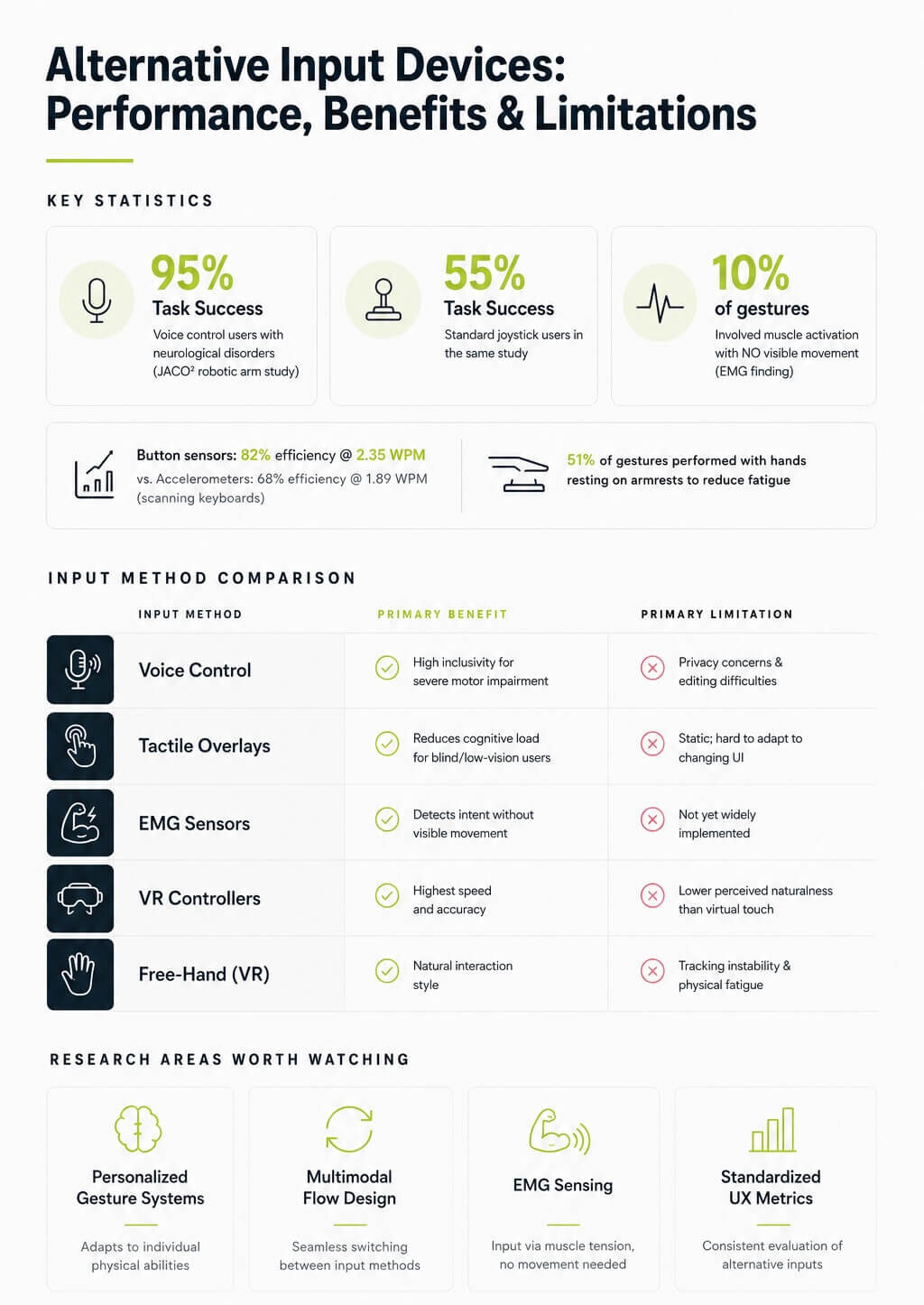
In February 2026, researchers at IRCCS Medea in Italy evaluated a voice-controlled system for the JACO² robotic arm with 20 participants who had neurological disorders. The results were eye-opening: 95% of participants (19 out of 20) successfully completed tasks such as pressing elevator buttons and pouring water using voice commands. In contrast, only 55% (11 out of 20) accomplished the same tasks with a standard joystick. The voice control system received a “Good” rating on the System Usability Scale (SUS), supporting findings published in the Journal of NeuroEngineering and Rehabilitation:
“Voice control represents a promising and inclusive access modality, with the potential to improve the usability of assistive robotic arms, particularly for individuals with severe motor impairments.”
Sensor-based inputs also revealed notable performance differences. A 2025 study comparing four sensor types for scanning keyboards found that button sensors led in both efficiency (82%) and speed (2.35 words per minute), while accelerometers lagged behind at 68% efficiency and 1.89 wpm.
An intriguing discovery was that about 10% of personalized gestures created by users with motor impairments involved muscle activation without any visible movement. Standard camera-based systems often fail to detect these subtle inputs, which is why EMG sensors are gaining traction as a more inclusive option.
Challenges and Opportunities in Device Design
Despite these advancements, designing for a wide range of user abilities remains a significant challenge. Even among individuals with similar diagnoses, physical capabilities can vary greatly. Momona Yamagami from the University of Washington highlighted this complexity:
“Personalized upper-body gesture interfaces that take advantage of each person’s abilities are critical for enabling accessible upper-body gestures for people with upper-body motor impairments.”
Some users rely on shoulder or neck movements, while others depend entirely on finger gestures. In one study, 51% of gestures were performed with hands resting on armrests to minimize fatigue. This underscores the limitations of sensing systems that only support mid-air interactions. Designing for location-agnostic sensing, which can recognize inputs from any body position, is a clear area for improvement.
The table below highlights how different input methods compare across key design factors:
| Input Method | Primary Benefit | Primary Limitation |
|---|---|---|
| Voice Control | High inclusivity for severe motor impairment | Privacy concerns and editing difficulties |
| Tactile Overlays | Reduces cognitive load for BLV users | Often static and hard to adapt to changing UI |
| EMG Sensors | Detects intent without visible movement | Not yet widely implemented or adopted |
| VR Controllers | Highest speed and accuracy | Lower perceived naturalness than virtual touch |
| Free-Hand (VR) | Natural interaction style | Limited by tracking stability and physical fatigue |
These findings point to a clear path forward: future UX/UI designs need to accommodate multiple input methods simultaneously, adapt to individual physical needs, and avoid assuming that all users interact in the same way or with the same level of motor control. By addressing these gaps, designers can create systems that are more inclusive and versatile.
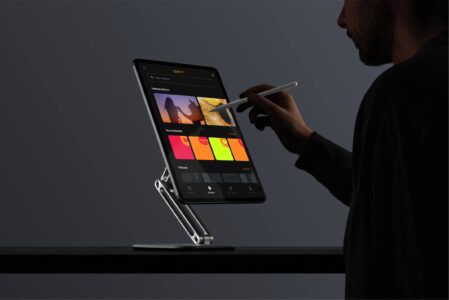
Design Considerations for Alternative Input Devices
Adapting Target Size and Layout
The size and spacing of interactive elements play a huge role in ensuring accuracy for users relying on devices like eye-tracking systems, switch controls, or sip-and-puff setups. According to WCAG 2.2, interactive targets should measure at least 24×24 CSS pixels. However, this minimum often falls short for eye-tracking systems, which operate with an input resolution of 1 to 10 degrees – much less precise than the 0.1-degree accuracy of a mouse. Buttons designed for mouse use may not work well for gaze-based interaction.
“Just as touch UIs need larger widgets than mouse-driven UIs to accommodate fingertip-sized input, gaze-driven UIs need even more space for each widget.” – Lawrence Yau, Sales Solution Architect, Tobii
For better usability, a target size of 44×44 CSS pixels is recommended. Placing key visual elements at the center of each target helps direct the user’s gaze and reduces accidental selections. Designers can also include invisible, expanded hit regions around smaller elements to capture near-misses. This approach differs from dwell-based confirmation techniques. To address the “Midas Touch” issue – where unintentional selections occur – mechanisms like adjustable dwell times or secondary confirmation steps are essential. Additionally, navigation should be structured to align with these input methods for a seamless experience.
Navigation and Information Architecture
Navigation must be as thoughtfully designed as target sizes to support users of alternative input methods. Predictable and logical navigation structures are vital for those relying on keyboard-only input, switch scanning, or sip-and-puff devices. Interfaces should follow a natural reading order and always display a clear focus indicator. Without these features, users can lose their place in the interface, leading to frustration and inefficiency.
Adding “Skip to Content” links at the top of every page is a practical enhancement. This allows switch and keyboard users to bypass repetitive navigation and jump straight to the main content. Similarly, any functionality requiring gestures like dragging, pinching, or multi-touch should offer a simpler alternative, such as a single click or tap. As the W3C emphasizes:
“All functionality should be accessible via pointer input devices… People operating pointer input devices may not be able to carry out timed or complex gestures.” – W3C
From a development perspective, using input-agnostic event handlers – like focus, blur, and click – ensures the interface responds appropriately, regardless of the input method.
Feedback and Timing Adjustments
Immediate feedback and flexible timing settings are also critical for improving user interaction. Multimodal feedback – visual, audio, and haptic – can confirm actions and is especially useful for users with motor impairments. For instance, eye-tracking interfaces can use visual progress indicators, such as a button that gradually fades during a dwell period, to improve accuracy and reduce user uncertainty.
Timing flexibility is equally important. Users with motor impairments may need extra time to react, so interfaces should allow them to pause, stop, or extend time limits. A minimum of 20 seconds is recommended for timed interactions. High mental workload can discourage users from sticking with assistive devices, so reducing unnecessary complexity is key. Providing adjustable sensitivity for devices like rotational controllers and customizable dwell times for eye-gaze systems enables users to fine-tune the interface to suit their needs.
Case Studies: Alternative Input Devices in Practice
Educational Platforms
Alternative input devices are making waves in education, especially with multimodal touchscreens that combine audio, haptic (vibratory), and visual feedback. These systems are a game-changer for students with visual impairments, enabling access to complex STEM graphics – like bar charts and geometric figures – that would otherwise be out of reach. Tools like RoboGraphics take this even further, integrating mobile robots with touchscreens to provide animated, interactive tactile experiences. Unlike static embossed paper, these dynamic systems bring diagrams and graphics to life.
Brain-Computer Interfaces (BCIs) are also being paired with physical switch inputs to create hybrid communication tools for students with severe speech and motor disabilities. By offering multiple input options, these setups allow students to engage in classroom activities without being limited to a single input method. These educational breakthroughs are paving the way for similarly transformative applications in healthcare.
Healthcare and Rehabilitation Tools
In healthcare, alternative input devices are proving to be just as impactful. The success of assistive technology often hinges on how well the device matches the user’s specific needs. For example, a February 2026 study on the JACO2 robotic arm highlighted the effectiveness of voice control for individuals with neurological conditions. This research emphasized the importance of adaptive designs that align with users’ abilities:
“Voice control represents a promising and inclusive access modality, with the potential to improve the usability of assistive robotic arms, particularly for individuals with severe motor impairments.” – Journal of NeuroEngineering and Rehabilitation
For individuals with Duchenne Muscular Dystrophy (DMD), where shoulder and elbow strength declines faster than finger and wrist strength, interface design becomes crucial. A January 2019 study published in Frontiers in Neurology compared various input methods for 60 participants with DMD. The Leap Motion non-contact gesture controller outperformed both Kinect and touchscreen options. Because Leap Motion doesn’t require physical contact, it reduces effort – a critical factor as the condition progresses.
Another innovative device, MouthIO, offers a completely different approach. Developed by MIT CSAIL and Aarhus University in October 2024, this 3D-printed electronic retainer uses tongue-touch sensors to enable webpage scrolling via Bluetooth. An embedded accelerometer even tracks bruxism. With material costs of about $15 and a two-hour printing time, it’s an affordable and practical solution:
“The mouth is a really interesting place for an interactive wearable… we’ve developed an open-source device that’s comfortable, safe, and almost invisible to others.” – Michael Wessely, Assistant Professor, Aarhus University
Emerging Technologies in Accessibility
Emerging technologies like VR and AR are opening up new possibilities while also revealing accessibility challenges. One standout example is RAVEN, introduced at the 2026 CHI Conference, which tackles a major issue for blind and low-vision (BLV) users in 3D environments: the inability to customize settings in real time. Using GPT-4o, RAVEN converts natural language prompts into Unity C# code on the spot. In trials with eight BLV participants, users successfully adjusted elements like enlarging a license plate or brightening a street scene – entirely through voice commands.
Foot-based input is another intriguing advancement. The AnkleType system allows users to type using ankle gestures while standing in VR. First-time users achieved a typing speed of 9.13 WPM, which increased to 15.05 WPM after just seven days of practice. This completely hands-free and eyes-free method demonstrates the potential of alternative input systems to redefine interaction.
These innovations show that inclusive design isn’t just about tweaking existing tools – it’s about reimagining interaction from the ground up to accommodate every user’s needs and abilities.

Recommendations and Future Directions
Designing for Multiple Input Methods
Alternative input methods should be treated as essential design components, not afterthoughts. From the beginning, interfaces should support keyboard, touch, voice, and gesture inputs, ensuring users can switch between them seamlessly without breaking the experience. This aligns with WCAG 2.5.6, which emphasizes that platforms must allow users to choose their preferred input methods and switch mid-task without issues.
Two key practices can make this work. First, rely on native HTML elements like <button> and <input type="range">, as they naturally support multiple input methods. Second, use pointerdown instead of mousedown or touchstart to create a unified event handler for mouse, pen, and touch inputs. These aren’t just helpful for developers – they’re critical for creating interfaces that include everyone.
“Motor effort has a metabolic cost. For someone navigating with a chin controller or tongue interface, each action incurs metabolic cost, fatigue, and potential injury.” – Marian, Author
Redundancy in design is a strength, not a weakness. Every essential action should be accessible through at least two input methods. For example, combine gestures with buttons or pair voice commands with visible controls. For voice commands to be effective, visible labels must match programmatic names in the code. If a user says a word displayed on the screen and nothing happens, the interface has failed.
This multi-input focus not only improves accessibility but also sets the stage for tackling future design challenges and innovations.
Research Gaps and Areas for Innovation
Existing research highlights the need for more adaptive and user-specific systems. One promising direction is personalized gesture systems, which move beyond fixed gesture sets to accommodate what each user’s body is capable of. Studies reveal that many user-designed gestures involve minimal movement, such as gestures performed with hands resting on an armrest to reduce fatigue. Current gesture interfaces often assume a range of motion that many users simply don’t have.
Electromyography (EMG) sensing is another exciting area. EMG can detect muscle activation even without visible movement, making it possible for users with limited mobility to control interfaces. When paired with sensors that work regardless of body orientation, this technology could significantly expand access. Additionally, there’s a pressing need for standardized UX metrics to evaluate alternative input methods and more research into multi-device ecosystems, where users rely on different inputs across various devices in a single session.
| Research Area | Why It Matters | Who Benefits Most |
|---|---|---|
| Personalized Gesture Systems | Adapts to individual physical abilities | Users with diverse motor disabilities |
| EMG Sensing | Enables input through muscle tension, no movement needed | Users with minimal mobility |
| Multimodal Flow Design | Allows seamless switching between input methods | Situationally disabled and power users |
| Standardized UX Metrics | Provides consistent evaluation of alternative inputs | Researchers and designers |
Connecting Accessibility to Branding and UX Strategy
Beyond technical improvements, integrating accessibility into a brand’s overall strategy magnifies its impact. A truly accessible interface doesn’t just meet usability standards – it reflects a brand’s dedication to inclusivity.
Globally, about 2.2 billion people live with some form of vision impairment. This number doesn’t even include situational limitations, such as users who are driving, holding a child, or working in noisy environments. Designing for alternative inputs means catering to a much broader audience than many teams initially realize.
This is where accessibility and branding intersect. A digital experience that supports voice, gesture, touch, and keyboard inputs sends a clear message: the brand values all users. As Visual Soldiers (visualsoldiers.com) explains:
“Accessibility in UX/UI design is not just a legal requirement; it is a moral imperative and a pathway to reaching a wider audience.”
For agencies handling UX and branding, prioritizing accessibility from the start – rather than treating it as an afterthought – leads to better results for clients and users alike. The tools and research are available; the real challenge lies in starting these conversations early in the design process.
Conclusion
Extensive research and real-world case studies highlight how alternative input devices play a critical role in digital interactions for millions of people. Tools like sip-and-puff switches and eye-tracking systems enable users with impairments or situational challenges to engage with technology in ways that suit their needs.
One key takeaway from the research is this: there’s no one-size-fits-all solution. For example, gesture agreement rates among wheelchair users can be as low as 5.5%. This underscores the challenge of designing a universal interaction model that works for everyone. Instead, the focus must shift to personalization, redundancy, and input-agnostic design – creating interfaces that adapt to various input methods.
This philosophy goes beyond simply meeting compliance standards. As the W3C guidelines emphasize:
“Users should be able to switch input mechanisms at any point should the user determine that certain tasks and interactions are more easily accomplished by using an alternative input mechanism.”
The principle of freedom to choose and switch is at the heart of inclusive design. By embedding these research-driven practices into the design process, teams not only achieve accessibility compliance but also deliver products that genuinely serve a broader range of users.
FAQs
To create a user interface (UI) that works well with voice, gaze, and switch inputs, focus on redundancy. This means ensuring that key tasks can be completed using at least two different input methods.
Here are some practical tips:
- Use native HTML elements to ensure compatibility with assistive technologies.
- Arrange the focus order logically for switch users, making navigation smooth and predictable.
- Design large, 44px-sized targets to accommodate gaze input effectively.
Additionally, make sure the system maintains its state across different input modes. Provide clear, immediate feedback when users switch between input methods, and allow them to select their preferred method for a more seamless and accessible experience.
For eye-tracking interfaces, aim for a 4-degree visual angle to ensure consistent interaction across different screen areas and viewing distances. Since the distance between the user and the screen can change – especially with mobile devices – adjust the pixel sizes dynamically to maintain this angle. To improve selection accuracy, consider using elongated, vertically-oriented hit areas. This design works well because eye-tracking tends to be more precise horizontally than vertically.
To prevent accidental clicks – often referred to as the “Midas Touch problem” – it’s better to use explicit activation methods rather than relying only on gaze. Here are some common techniques:
- Dwell time: This involves users focusing on an element for a specific amount of time (typically between 100 and 3000 milliseconds) to confirm their intent.
- Multimodal inputs: These combine gaze for aiming with additional actions like pressing a button, making gestures, or using voice commands to finalize the selection.
- Filtering techniques: Advanced methods, like machine learning, help distinguish between intentional actions and unintentional movements.
Each of these strategies ensures more accurate interaction and reduces unintentional selections.

Visual Soldiers
Visual Soldiers is an Atlanta-based creative studio specializing in branding, design & digital experiences.